
Time Clock
Bridge Admin Portal – Bridge Services LLC
Overview
The Time Clock page allows administrators and managers to review and manage employee work hours. It supports both manual entry and real-time clock-ins from connected job sites.
Features
1. Viewing Time Entries
Displays all logged hours by user, tenant, and project. Includes filters for:
- Date Range
- Tenant
- User Role
- Project Name
Highlighted in Yellow
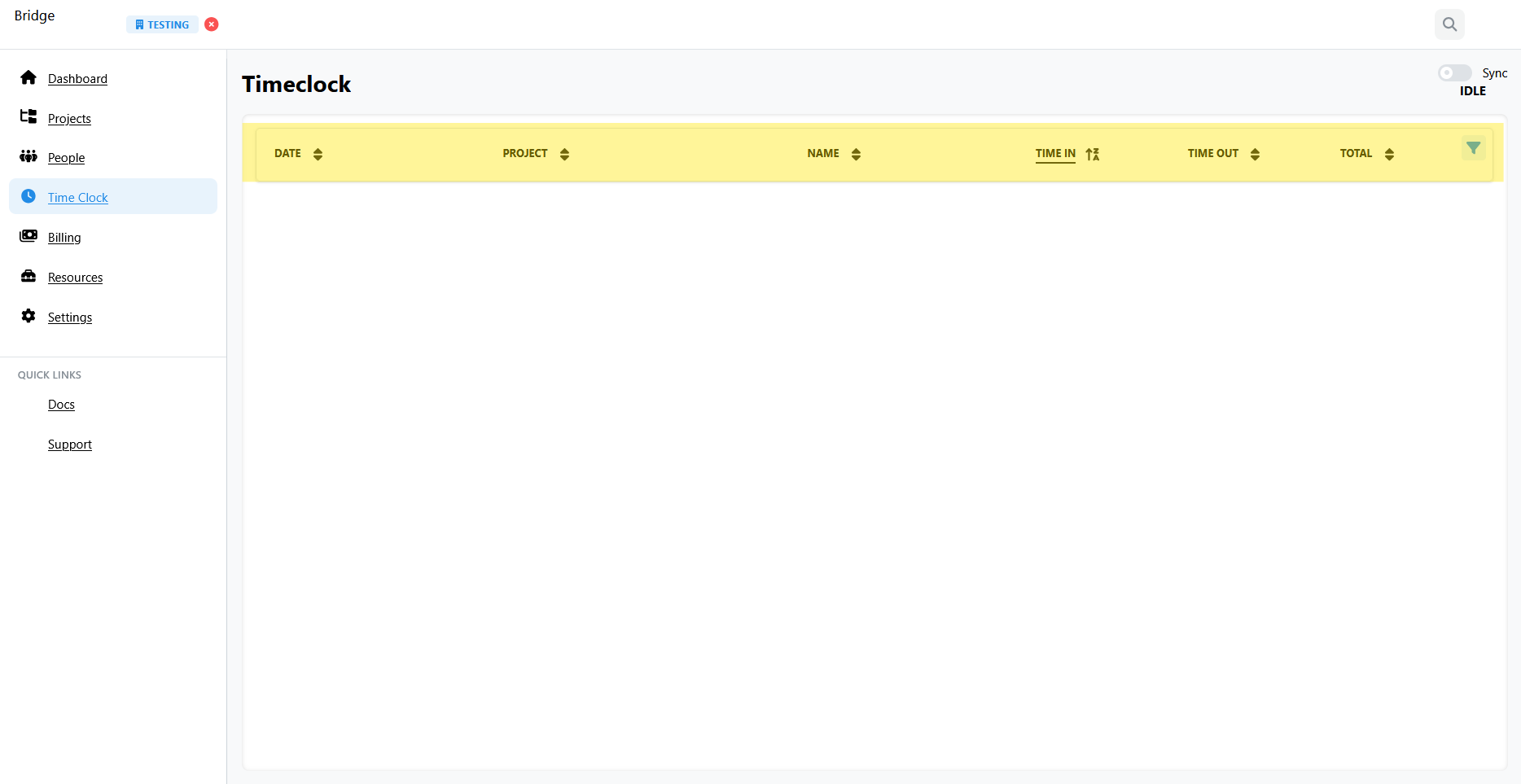
Additionally:
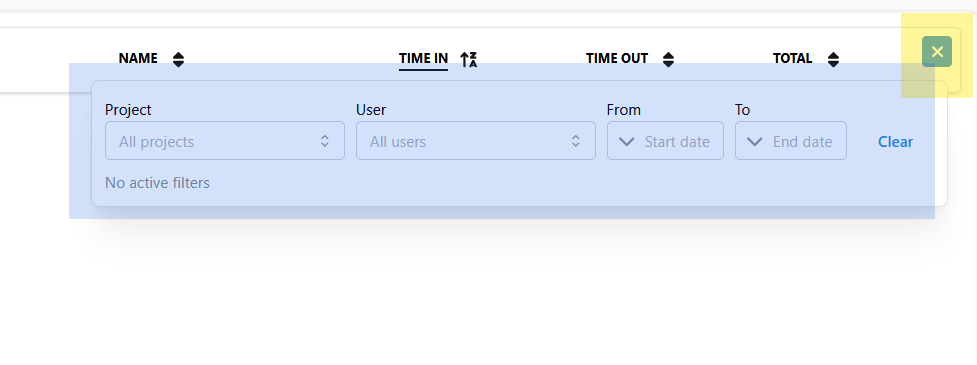
2. Adding Manual Time
- Click Add Entry.
- Select user and project.
- Enter start and end times.
- Add optional notes for work type or location.
- Click Save.
3. Editing or Approving Time
Supervisors and admins can:
- Edit incorrect entries.
- Approve or reject time submissions.
- Export approved hours to billing or payroll.
Common Workflows
Approve Weekly Hours
- Select the Current Week filter.
- Review total hours by project.
- Approve all or individual entries as needed.
Correct Time Errors
- Locate the entry.
- Click Edit to adjust time values.
- Save changes to update records system-wide.
Tips
- Ensure all employees clock in/out via authorized devices for accuracy.
- Reconcile time logs before exporting to billing.
Last Updated: November 12, 2025 (Managed by Bridge Platform Administration Team)